
Sign in and reach your UnoMe workspace
Follow these steps using the UnoMe web address and account supplied by your administrator.
You need the UnoMe web address, your account name, and your password. No API key is required.
Open the UnoMe address
Enter the address supplied by your administrator in the browser. UnoMe redirects you to the sign-in page. Locate the Account field highlighted in red.
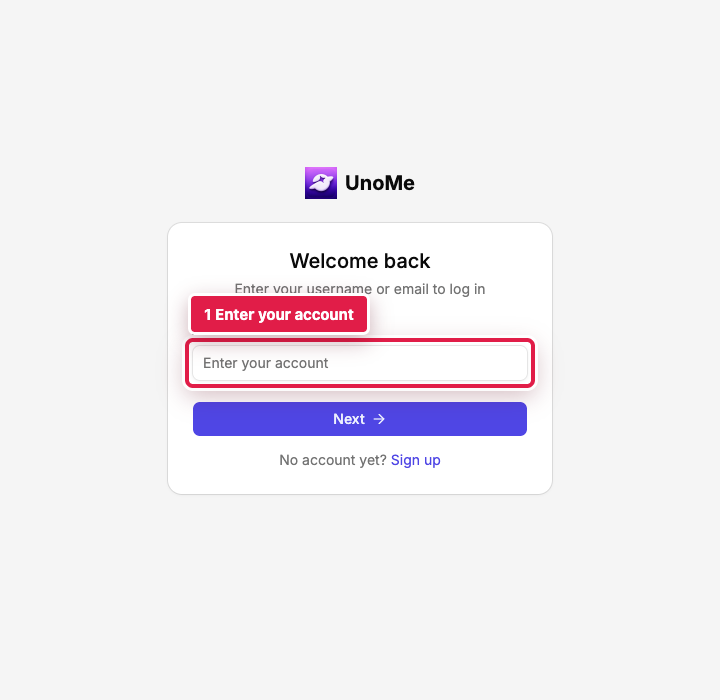
Enter your account name
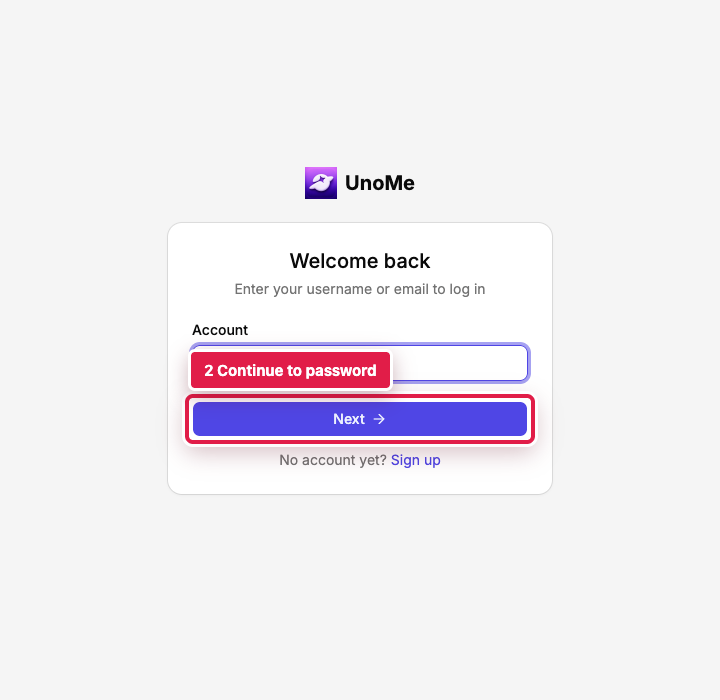
Type your assigned account name. Select Next, highlighted in red, to continue to the password step.
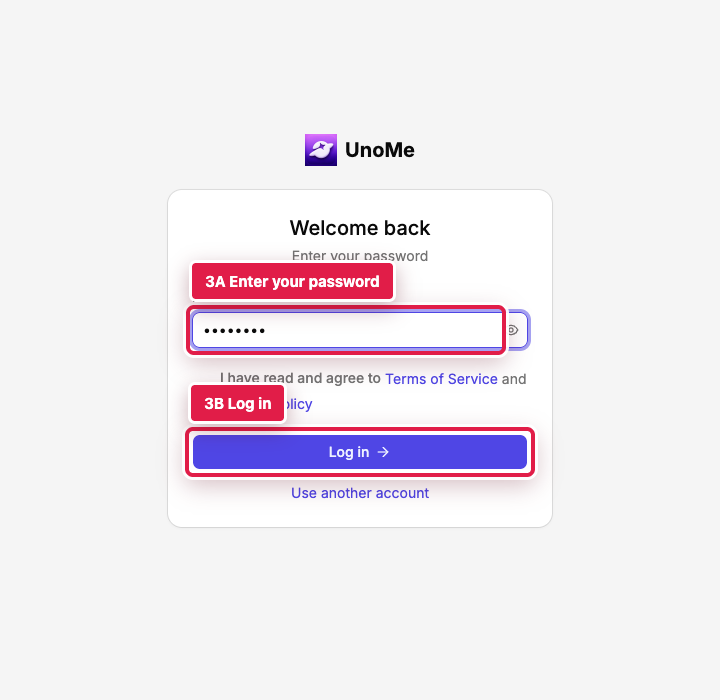
Enter your password and log in
Type your password in the highlighted field, then select Log in. Password characters remain hidden while you type.
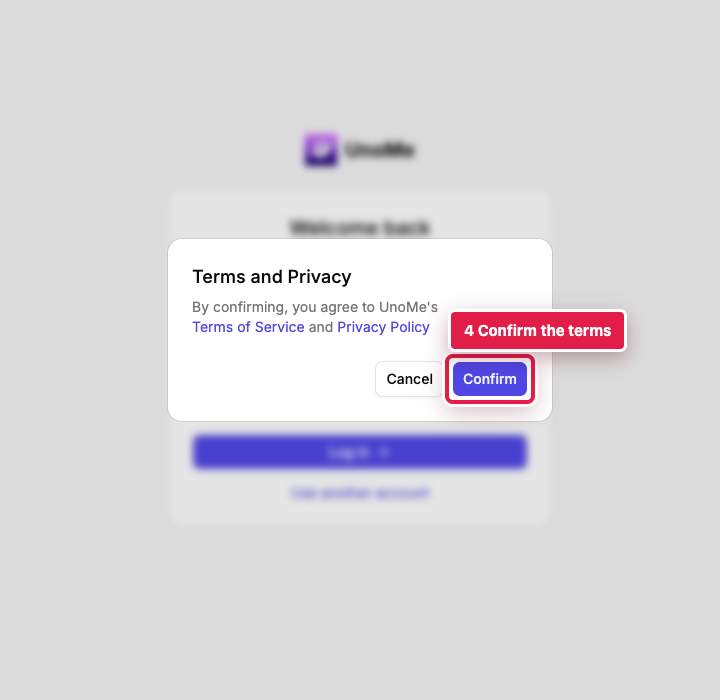
Confirm the terms when prompted
On a new browser session, UnoMe may show a Terms and Privacy confirmation. Read the message and select Confirm if you agree.
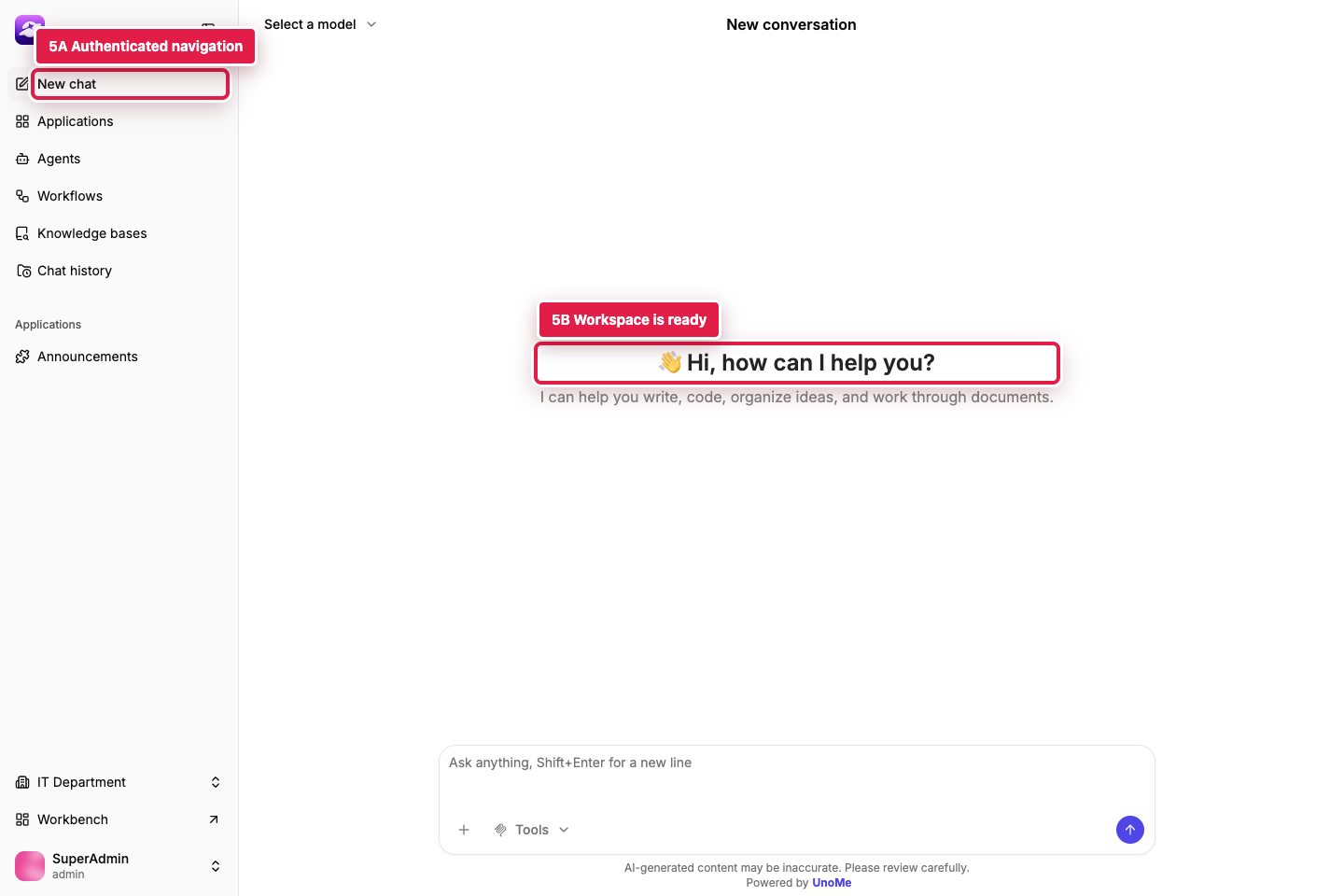
Recognize a successful login
Confirm that the left navigation is visible and the main area says Hi, how can I help you?. These two highlighted areas show that you have reached the authenticated workspace.
You have completed this tutorial when the authenticated workspace remains visible after refreshing the browser.